| Reset format of the date header At the top of all posts! |
|---|
|
Friday, February 13, 2009
Change Format Of Date Header


Thursday, February 12, 2009
How To Post Photos
The most direct way to get photos on your post is to use Blogger's picture icon:
There are alternate free photo hosts such as Picasa, Photobucket, Flickr, etc. With some of them, costs may ensue if you exceed their limits. Try any of them, though, as alternatives when your photo host is troublesome. One may work when another one does not.
There are several useful screenshots below!
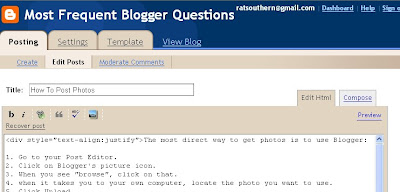
First is a screenshot of the top part of this post in the Post Editor. It shows the Blogger picture icon, the tiny rectangle that's blue in the top half, and primarily green in the bottom half.]
[Below are screen shots of the photo download process.]
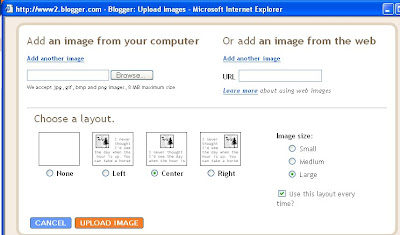
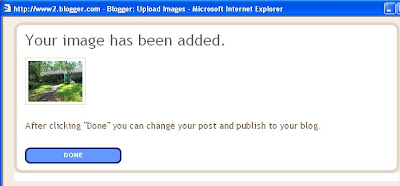
New images always load into a post at the top. If you view the image in Compose mode, you can Drag and Drop it to other locations; if you are viewing it in Edit Html mode, use Cut and Paste to relocate it.
END.
| 1. Go to your Post Editor. 2. Click on Blogger's picture icon. 3. When you see "browse", click on that. 4. when it takes you to your own computer, locate the photo you want to use. 5. Click Upload. 6. Click on Done. 7. If you uploaded to a post different from where it's intended to go, possibly even on a different blog, Copy the html code. 8. Paste the code into the right post. |
There are alternate free photo hosts such as Picasa, Photobucket, Flickr, etc. With some of them, costs may ensue if you exceed their limits. Try any of them, though, as alternatives when your photo host is troublesome. One may work when another one does not.
There are several useful screenshots below!
[More below...Screenshots]
First is a screenshot of the top part of this post in the Post Editor. It shows the Blogger picture icon, the tiny rectangle that's blue in the top half, and primarily green in the bottom half.]

[Below are screen shots of the photo download process.]


New images always load into a post at the top. If you view the image in Compose mode, you can Drag and Drop it to other locations; if you are viewing it in Edit Html mode, use Cut and Paste to relocate it.
END.
Sunday, February 08, 2009
Blogsend--Email Notification for 10 or Less
If you have a list of 10 or fewer people that you'd like to send email notifications of each time you publish a new post, here's how.
|
Saturday, February 07, 2009
Move Items Above Or Below Post
|
[More below...screenshots of the "Configure Blog Posts" page.]
Click each screenshot for larger image!


Tuesday, February 03, 2009
Most Erotic Blog Post Ever!
| This isn't really the most erotic blog post ever; I just thought I'd see who was awake this sleepy evening. If this isn't February 3, I guess you weren't. |
Thursday, January 29, 2009
Hide Blogs on the Profile List?
| How Can I Show Some, Hide Others? |
|---|
|
Sunday, January 18, 2009
Small/Large Photos
| "How do I get my pictures to enlarge when I click on them?" I don't keep track of all the other photo hosts, but Blogger downloads your photo in a sort of dual system so that a small image is made that fits the area (post or sidebar) and then you can click on it for the full-size large version. I used to do the same thing by hand when I made my own web sites by making both a small and large version of a picture and placing them in the format below. You can see it in the html code of your blog if you look at it in Edit Html mode; it will look something like this: <a href="http://2.bp.blogspot.com/ _AVxLoZ0mR_0/Rb_W1nLeYQI/AAAAAAAAAIg/ qCR5JYhLf6o/s1600-h/dgblues.jpg"> <img id="BLOGGER_PHOTO_ID_ 5025971925707284738" style=" DISPLAY:block; MARGIN: 0px auto 10px; CURSOR: hand; TEXT-ALIGN: center"alt="" src="http://2.bp.blogspot.com/_AVxLoZ0mR_0/ rb_W1nLeYQI/AAAAAAAAAIg/qCR5JYhLf6o/ s400/dgblues.jpg" border="0" /></a> If you click the small image (the blue text above) you'll see the large photo (red text above), otherwise the small image is already showing. END. |
Monday, January 05, 2009
Change Color, Font, And Size of Text
| When you select "Fonts and Colors" on the Layout page, "Text color" is the first in the vertical list, but "text font" is further down (sixth on my list); if you click on that link, a list of fonts (not previously showing) should appear in place of the color boxes out to the right. Furthest to the right are boxes to check for Smaller, Larger, Bold, and Italic. If you still aren't seeing what you expect, never underestimate the value of "clearing the cache and cookies" to update your screen. |
Sunday, December 14, 2008
Move (Re-locate) Photos in a Post
| Most photos get loaded at the top of the post. I am not aware of any way to "point" with the cursor or otherwise assign the photo being uploaded a specific position in a post. The photo or image can, of course, be moved after it has been uploaded. Below are two methods for changing the photo position(s): In Compose mode you can see the photos. You can relocate the image by dragging and dropping it. In Edit Html mode you will see the code for the photos and will have to use Preview (or switch to the Compose mode) to see images. You can move it by using Cut and Paste on the code. If Compose tab is missing, you might have to go to Settings to activate it or it may be that you need to Refresh (F5) or clear your cache and cookies to make the link/icon visible again. |
Also of value, consider Table for Horizontal Photos In Post .
Sunday, December 07, 2008
Placing Photos in your Post
| Every photo you upload will go on top of your post and you have to move them "by hand" if you want them in special locations. You can move the photos where you want them AFTER you upload them (use either drag-and-drop with the mouse or "cut" the html photo code and then paste it into the correct location or sequence. |
Subscribe to:
Posts (Atom)


